Add your pet
What this is for
This is the last setup step. You will take a photo of your pet and add a few details. When you finish, your pet's Passport is live.
Steps
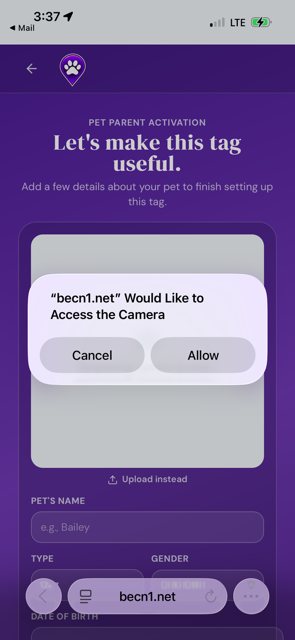
1 — Allow camera access. Your browser will ask whether BēCN Pets can use your camera. Tap Allow.
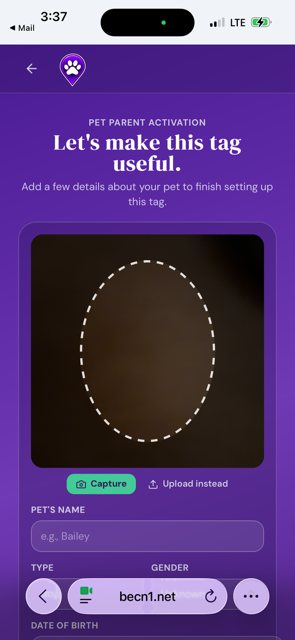
2 — Take the photo. Line your pet up inside the oval and tap Capture.
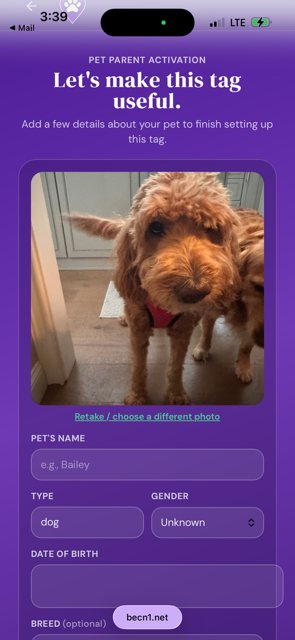
3 — Check the photo. Happy with it? Carry on. Not happy? Tap Retake and try again.
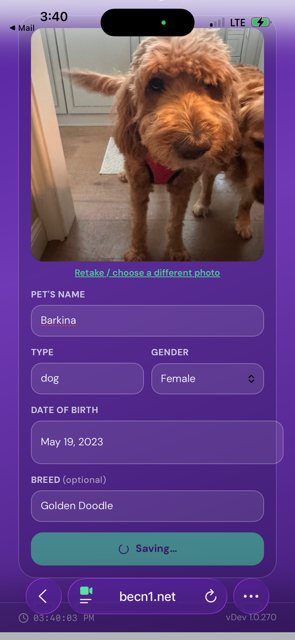
4 — Add your pet's details. Type their name, and fill in as much as you like — type, gender, date of birth, and breed. Only the name is required. You can add the rest later.
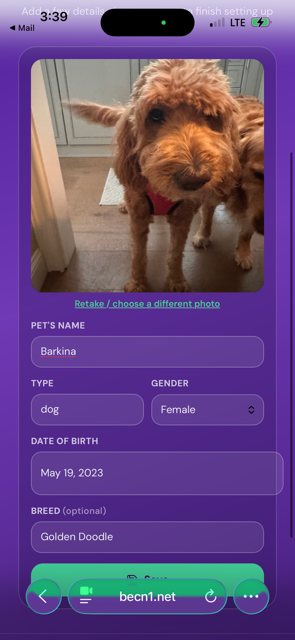
5 — Tap Save. Give it a moment while we save everything.
What happens next
That is setup finished. Your pet's home screen will open. From here you can add records, invite a Pet Friend, or just leave it — everything is ready when you need it.
Related pages
Still need help? Email support@becnpets.com or visit becnpets.com/support. We're a small team and we're glad to help.
Most questions are answered in the frequently asked questions.